

Patsy’s Treasure Chest
 Patsy’s Treasure Chest
Patsy’s tool belt: Your first ESO add-ons without the chaos
About 8 minutes to read
A tool belt is only a tool belt if everything does not tumble into it at once, leaving nobody able to tell which buckle is squeaking. That is exactly what happens to many people in Tamriel as soon as someone says “add-on”: suddenly there are forty tools on the table, the interface looks like a flea market and something keeps beeping, with no way to say what. Grandma Irmintrude would line them all up, label them and forbid anyone to touch the second until the first was properly in place. For once, she would even be right.
The community add-ons described here, obtained through Minion and ESOUI, are for PC and Mac. They are unofficial, are not made by ZeniMax and should be installed at your own risk, using trusted sources such as ESOUI or Minion from minion.mmoui.com or minion.gg. Minion itself is a third-party program. Official customer support does not provide support for these extensions, and we earn nothing from them: we are not a partner of ZeniMax, Bethesda, Minion or ESOUI. ESO’s help pages do, however, calmly explain how to switch add-ons on and off in the game. These extensions concern the interface and related convenience functions, rather than replacing the game world. If you move a button or display a price beside an item, it is still the same Tamriel. Just clearer. Or, if too many extensions arrive at once, sometimes considerably less clear.
Letting Minion do the work
The convenient route is the Minion add-on manager, available from minion.mmoui.com or minion.gg. Install it, launch it, let it update and then locate the folder where ESO expects its add-ons. If the program does not find that folder automatically, point it there yourself. The usual Windows path is:
C:\Users\<your name>\Documents\Elder Scrolls Online\live\AddOns
On a Mac, look here:
/Users/<your name>/Documents/Elder Scrolls Online/live/AddOns
Replace the placeholder with your own username. The folder name AddOns stays the same, including on a German system. Older instructions also mention a separate liveeu folder. Do not choose it simply because you play on the European server: check which user folder your current client actually uses. A redirected Documents folder, for example through OneDrive, may also change the full path. The files need to end up in the active client’s AddOns folder, not in an old folder that merely happens to exist.
In Minion, use “Find More” to search for extensions, install them and keep them current with the update controls. Many add-ons also need libraries, known as dependencies. These are listed on their ESOUI pages or in Minion. Read those requirements and install the libraries as well. Otherwise you may end up with a splendid tool in your belt that has a cog missing, and nobody can understand why it will not turn.
Putting the files in the compartment yourself
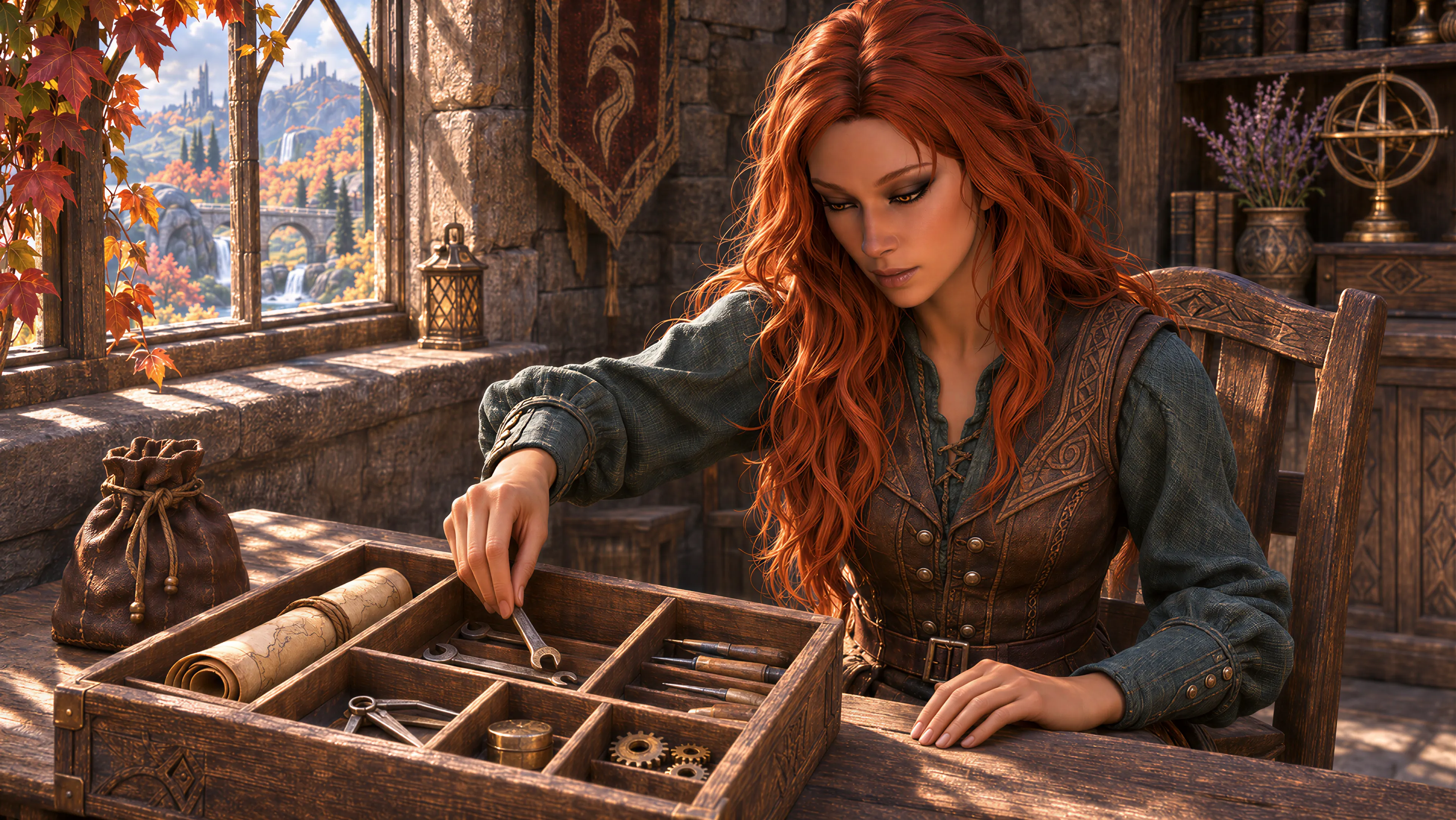
If you prefer to leave Minion aside, download the extension directly from ESOUI, extract the ZIP file and put the add-on’s own folder inside the active AddOns directory. That fills the compartment, at least on the disk. Minion is still convenient for updates, which are less likely to disappear beneath the pile of parchment there. Either method works. What matters is that the files land in the correct AddOns folder for the client, rather than one level too high or inside an unnecessary extra folder, where the game politely ignores them.
Inside the game
Once the files are in the right place, the extensions appear in the Add-Ons submenu. ESO’s official help says you can reach it from the main menu on the left of character selection, or by pressing Esc while in the game. Tick the extensions you want to enable and reload the interface so the changes take effect. You can also reload it by typing /reloadui in chat and pressing Enter. For activation and many changes that is enough. When newly installed files or textures are not detected, or the author specifically requests it, restart the game completely.
One old piece of advice can stay in the attic: the blanket “Load Out of Date Addons” checkbox was removed with Update 30. An older compatibility label does not automatically mean an extension is broken. Check for updates and required libraries; if an add-on causes errors, disable that particular one until you have a suitable version. That is better than dragging a troublesome tool through the menu with your teeth clenched.
And now for the rule that put this article in the Treasure Chest in the first place: not all at once. Install one, or at most a small group, look at what changes in the game and only then add the next. Otherwise you will be guessing which add-on covered the map in markers, moved the chat or swallowed a button. Why is it beeping? Which window is new? Who rearranged the bag? Those questions are much easier to answer when there is only one suspect in the room.
Five tools to start with
Five extensions are plenty for a first belt. Each has a clear job, and you need no more on your first evening.
- Map Pins (Hoft, art1ink) adds map markers, for example for skyshards, lorebooks, wayshrines and achievements. The map filters help keep it manageable.
- Votan’s Minimap (votan) keeps a small map on the screen, so finding your surroundings does not always require opening the large map.
- Tamriel Trade Centre (cyxui) displays price information when you hover over an item, helping you avoid selling something valuable to an ordinary vendor by mistake. Check the current version on ESOUI; the listing reviewed for this article showed an update dated 9 April 2026. These are market indications, not guaranteed selling prices.
- Dolgubon’s Lazy Writ Crafter (Dolgubon) takes much of the clicking out of daily crafting writs. Install the libraries listed on ESOUI too.
- BeamMeUp – Teleporter (Fast Travel) (@DeadSoon, Gamer1986PAN) uses friends and guild members as travel destinations and can save the gold charged for recalling to a wayshrine from the field. Travelling directly from one wayshrine to another is already free. This add-on also needs the libraries listed on ESOUI. Its authors recommend a full game restart after installation so the icons load correctly.

Tamriel Trade Centre also uses an external client for synchronising price data and sharing listings. Its authors provide the current instructions and alternatives on the add-on’s own pages. Having the add-on installed does not, by itself, guarantee that its price data is up to date. All five extensions can be found through Minion or directly on ESOUI.

A minimap on the test server
If you are wondering why a small map needs an add-on at all, that is a fair question. As of 15 November 2026, a built-in minimap is being tested on the public test server for Update 52. ZeniMax lists it among the upcoming player experience improvements. The precise settings and behaviour may still change during testing.
That is a test-server feature, not a promise about the current live client. Votan’s Minimap therefore remains a useful tool for now, rather than an obsolete one. Later, you can take your time deciding whether the official map does the same job for you. Until then, a PTS feature is a preview, not a finished everyday instruction.
Five tools, one folder, a tick beside each chosen extension and the golden rule: do not stuff the whole lot into your belt at once. That earns five sweetrolls. I am keeping the sixth back in case someone installs forty add-ons in one go and then asks me which one misplaced the bag.
Yours, Patsy Wackelwitz
My sources
- ESO Help: How do I enable/disable add-ons? — the Add-Ons submenu and interface reload. Its old blanket checkbox advice is superseded by the Update 30 notes.
- Official PC/Mac patch notes: Blackwood and Update 30 — removal of the “Load Out of Date Addons” checkbox.
- Minion and minion.gg — the manager’s own websites.
- ESOUI author pages: Map Pins, Votan’s Minimap, Tamriel Trade Centre, Dolgubon’s Lazy Writ Crafter and BeamMeUp — features, dependencies and installation notes.
- Official U52 feedback thread for player experience improvements — the planned minimap on the test server.
Patsy Wackelwitz is a fictional character. This article was created with AI assistance. All images are AI illustrations, not game screenshots.
More stories worth a read

Dice, Sweetrolls and Ten Questions for Game Night
Sometimes it takes remarkably little to spend a whole evening in another world. The rain taps on the window, somebody lights the candles, and suddenly the kitchen table holds more dice, scraps …
Read more : Dice, Sweetrolls and Ten Questions for Game Night
New Life in Tamriel – Patsy’s Cheat Sheet for Breda’s Nine Traditions
When Evening Star comes to Tamriel and the first frost flowers spread across the windowpanes, I feel the same mixture of anticipation and healthy suspicion every year. Anticipation because the New Life …
Read more : New Life in Tamriel – Patsy’s Cheat Sheet for Breda’s Nine Traditions
From a Pile of Tunes to a Concert in Bree
Concerts outside the Prancing Pony in Bree always look so effortless. Six, eight or a dozen musicians stand in their finest clothes. At some invisible signal they lift lute, theorbo, clarinet and …
Read more : From a Pile of Tunes to a Concert in Bree